
Sign in easier. Stay safer. Use passkeys.
Passkeys are an easier and more secure way to sign in to your accounts – no passwords to remember or type. Just use your fingerprint, face, device PIN or security key.

Passkey support is growing quickly, with passkeys now available across major platforms, browsers, apps, and many of your favorite websites, including:





+ Plus, many others
Goodbye, Passwords
Why use passkeys?
Passkeys eliminate the password, make account signing in easier and stronger, while protecting you from phishing and other common attacks. Additionally, you can have peace of mind that none of your biometric or sign-in information is ever shared with websites or apps.
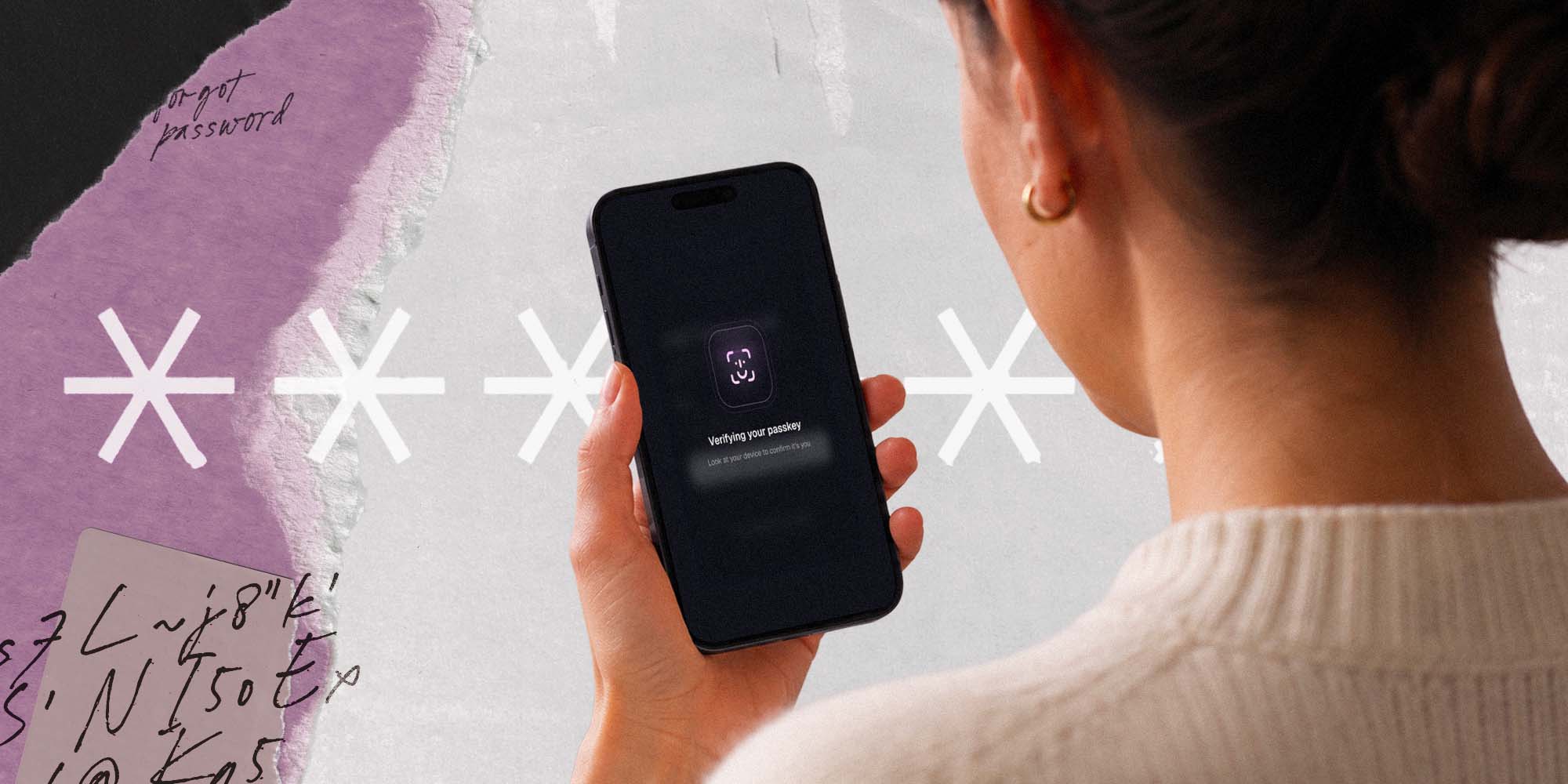

Easier sign-ins
No password to remember, no waiting for a text message and no annoying codes to enter. Just use your fingerprint, face, PIN or security key.

Faster sign-ins
Signing in takes just a second – quick, easy, secure.

Safer from phishing
Passkeys are designed to protect you from phishing and other common attacks. A passkey only works with the website or app it was created for, so it can’t be reused on another site or tricked to be used on a fake one.
Getting Started
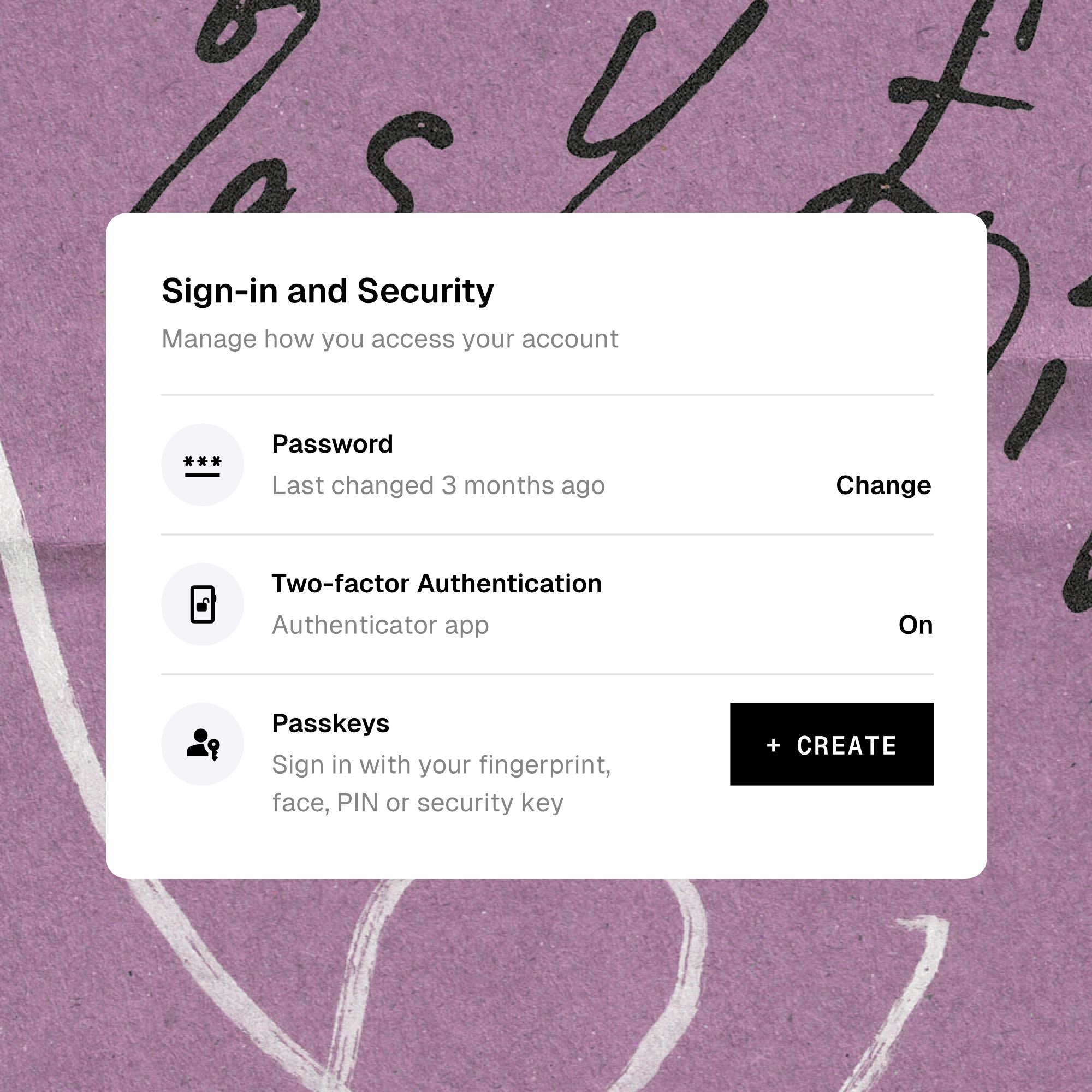
Create a passkey
Many websites and apps now offer passkeys for secure login.
In your account’s security settings, look for Create a passkey or Sign in with a passkey. Creating one usually takes just a few seconds. A service may also offer to create a passkey after you sign in or reset your password.
Once you have your passkey set up, you can use it whenever and wherever you access that account.
Sign in with a passkey
Sign in with a passkey on mobile
On your phone or tablet, your passkey is saved on the device itself or in your password manager, and you confirm it’s you with your face, fingerprint or PIN. Here’s what a sign-in looks like.




On the sign-in screen, choose ‘Sign in with a passkey’ instead of typing a password. Often your passkey for the account appears automatically above the keyboard, in which case just tap it. If you’ve saved passkeys for this account in more than one place, such as your phone’s built-in password manager and a separate password manager app, you’ll be asked to choose which one to use.
Use your passkey to confirm it’s really you.
That’s it – you’re in. No password to remember, nothing to type, and nothing sensitive sent to the website. Next time, signing in is just as quick.
Sign in with a passkey on desktop
On a laptop or desktop, your passkey might be saved on that computer, in your password manager, on a security key, or on your phone. Whichever it is, the browser walks you through it – no password needed.
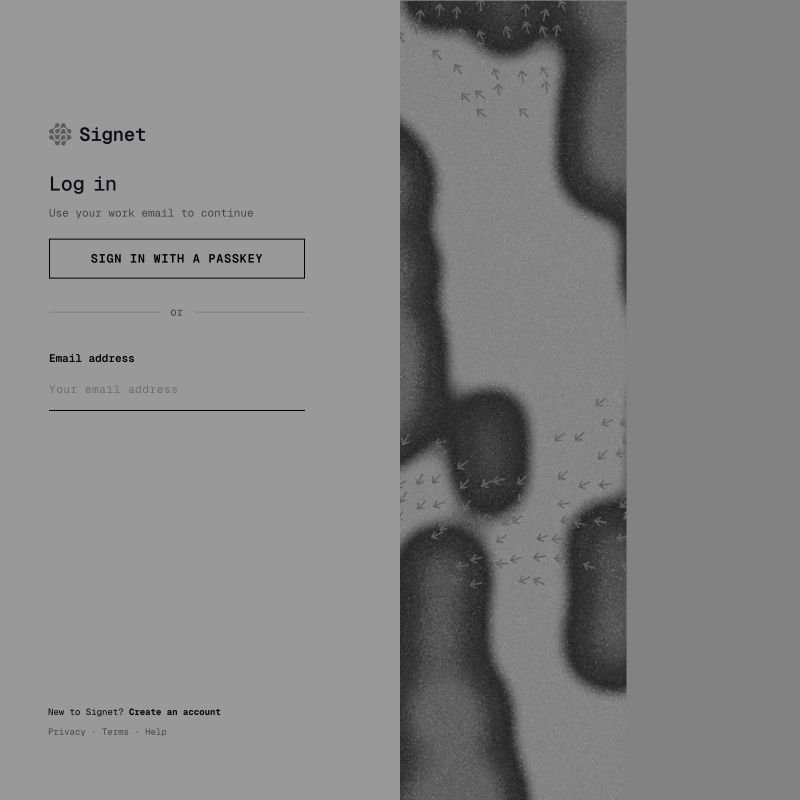

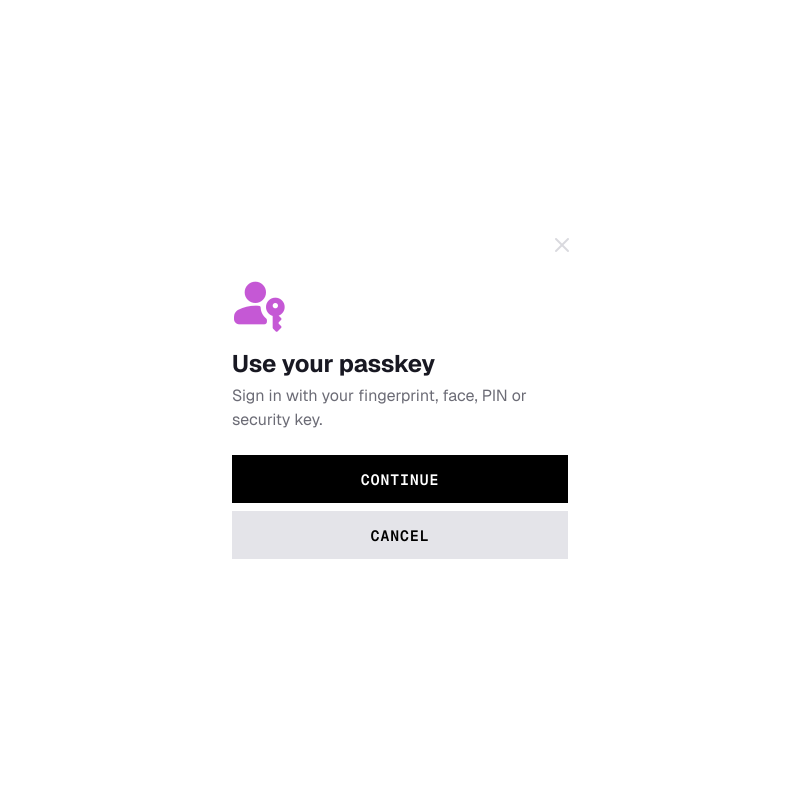

On the sign-in screen, choose ‘Sign in with a passkey’. Some browsers also suggest your passkey when you click into the username field – just select it there.
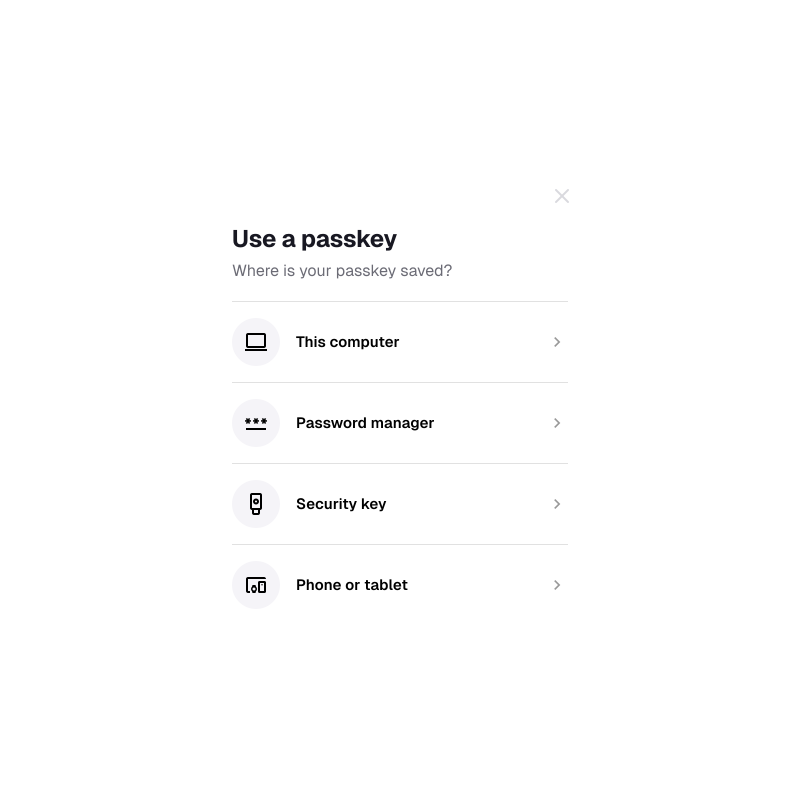
Your browser shows the places it can look: this computer, a password manager, a security key, or a phone or tablet. If your passkey is on your phone, pick that option and scan the QR code with your phone’s camera.
Sign in with your fingerprint, face, PIN or security key.
That’s it – you’re in. No password to remember, nothing to type, and nothing sensitive sent to the website. Next time, signing in is just as quick.
Support
FAQs
Quick answers to the most common questions about passkeys — how they work, how they protect you, and what they mean for your existing passwords.
What is a passkey?
A passkey is a digital key that unlocks your account—like a password, but safer and easier. Passkeys make signing in faster, much easier (no memorizing passwords), and automatically safer for you. You approve the use of your passkey by using your device’s built-in security features like your fingerprint, face, or PIN, or a hardware security key instead of typing a password.
Should I use a passkey?
Yes! With passkeys:
- Secure and familiar: You sign in with your device’s built-in security features like your fingerprint, face, or PIN, or a hardware security key—things you already use today.
- No typing passwords: Sign-ins are much quicker because you don’t need to type a password or receive a one-time code.
- Automatic management: Your device handles the secure keys for you; you don’t need to worry about creating or storing strong, unique passwords for each site anymore. If you have ever saved a password on your device or in a password manager (like Google Password Manager or Apple Passwords), the experience will feel familiar.
- Built-in security: Passkeys are designed to protect against common attacks like phishing and password theft.
How do passkeys work?
When you create a passkey for a website or app, your device and the website each receive a unique piece of a matching pair, similar to a key and lock that only work together. Your device securely stores the key, while the website stores the corresponding lock.
When you sign in, your device proves it has the correct key. If the website verifies that the key matches, you’re signed in.
Each passkey is unique to a specific website or app, so it cannot be reused on other sites or accidentally used on a fake website.
How do I create a passkey?
Creating a passkey usually takes just a few seconds.
- Go to your account’s security settings on a website or app.
- Choose Create a passkey.
- Confirm using your device’s screen lock, fingerprint, face, or security key.
Your device then securely creates and stores the passkey for that account.
How do passkeys protect my accounts better than passwords?
Passwords have common problems: they can be stolen from websites, guessed by attackers, or entered into fake sign-in pages.
Passkeys are designed to prevent these issues:
- Phishing resistance: Each passkey only works with the real website it was created for. Even if you click a fake link, the passkey will not work on the fake site.
- No shared secrets: Your passkey stays on your device and is never shared with websites.
- Unique for every service: Each account gets its own passkey, so there is nothing to reuse across different sites.
Can hackers steal my passkey?
Passkeys are designed to be extremely difficult to steal.
Unlike passwords, passkeys cannot be guessed, reused across websites, or captured by phishing attacks. Your passkey stays securely stored on your device, security key, or in your password manager and is never shared with websites.
If your passkeys are managed by a password manager or cloud account, they are protected with strong end-to-end encryption, meaning only you can access them.
Even if someone were able to access your account with that provider, they typically still could not use your passkeys without access to your device or your device’s unlock method, such as your fingerprint, face, or PIN. Service providers also apply additional security checks before restoring passkeys to a new device.
If I use my biometrics on my device to sign in with passkeys, is my biometric information safe?
Yes. Your biometric information stays securely on your device and is never shared with websites or remote servers.
When you approve a passkey sign-in, your device simply confirms that the biometric check succeeded. Your fingerprint or facial data never leaves your device.
Are my passkeys stored on the website?
No. Your passkey stays on your device, security key, or in your password manager, not on the website.
The website only stores a mathematical counterpart that works with your passkey to confirm your identity. This design helps protect your account even if a website experiences a data breach.
Which websites and apps support passkeys?
Many popular services already support passkeys, including companies like Google, Apple, Microsoft, PayPal, Amazon, and others. More websites and apps are adding support every year.
If a service supports passkeys, you’ll usually see an option like “Create a passkey” or “Sign in with a passkey” in your account security settings.
Do I still need a password if I use a passkey?
It depends on the service. Some websites allow you to sign in using either a password or a passkey, while others allow passkey-only sign-in.
Even if a password still exists on your account, you usually won’t need to type it when signing in with a passkey.
Over time, more services are moving toward password-free sign-in using passkeys.
If I create a passkey on my phone, can I still sign in on my computer or tablet?
Yes. Your passkeys typically are securely managed across your devices through your operating system’s cloud account (such as Google Account orApple Passwords), or through leading credential managers like Bitwarden, 1Password, Dashlane, or LastPass.
In these scenarios, a passkey created on one device will often automatically appear on your other devices.
When signing in on another device, you simply approve the sign-in using that device’s unlock screen, such as its PIN or fingerprint.
What should I do if I see a QR code when signing in with a passkey?
Sometimes you may see a QR code during sign-in. This usually happens when you’re signing in on a device that doesn’t have your passkey stored.
To complete the sign-in:
- Open the camera on your phone.
- Scan the QR code shown on the screen.
- Approve the sign-in using your phone’s screen lock (such as face, fingerprint, or PIN).
Your phone confirms the sign-in securely, and you’ll be signed in on the other device. Your passkey stays safely on your phone and is not copied to the other device.
What if I need to sign in to a device that I don’t own, like a library computer or a friend's tablet?
You can still sign in using your phone’s passkey.
On the shared computer:
- Choose the option to sign in with a passkey from another device.
- A QR code may appear.
- Scan the QR code with your phone.
- Approve the sign-in on your phone.
You’ll be signed in on the computer, but your passkey stays securely on your phone.
What happens if I lose my phone or it breaks? Am I locked out?
No need to worry about being locked out.
Most passkeys are securely backed up through your main account (such as your Google Account, Apple iCloud account, or Microsoft account). When you sign in on a new device, your passkeys can be restored automatically.
If you use a password manager such as Bitwarden, 1Password, Dashlane or LastPass, signing back into that account will also restore your passkeys.
I share accounts with my family or handle someone else’s accounts. Can passkeys work for us?
Yes, but it may work a little differently than passwords. Passkeys are designed to be personal to a device or account holder, which helps keep accounts secure.
There are a few ways passkeys can still work when accounts are shared:
Multiple passkeys can often be added to the same account, allowing each person to sign in with their own device.
Passkeys can sync across your own devices, such as through iCloud, Google Password Manager, or a password manager.
Some services may support family sharing or delegated access, which can be a safer alternative to sharing one login.
If you currently share passwords, check whether the service allows multiple passkeys or user profiles, which is often the easiest and most secure option.
My service provider suggests I use a FIDO security key — what is that? Is that a passkey?
A FIDO security key is a small physical device—often a USB or NFC key—that you use to sign in securely. Instead of typing a password or entering a code, you plug in or tap the key and confirm it’s you (typically by typing a PIN or using a fingerprint).
A security key can store passkeys, but it is a dedicated device designed for strong security. Some people prefer using one for important accounts or for additional protection.
I want to buy a FIDO security key to store my passkeys. How do I know which one to buy?
Look for security keys that are FIDO Certified, which means they meet the security standards used by passkeys.
Common features to consider include:
- USB, NFC, or both depending on whether you’ll use it with computers, phones, or tablets
- Compatibility with your devices (USB-C, USB-A, Lightning, etc.)
- Whether you want biometric features like a fingerprint reader
Many well-known manufacturers produce FIDO Certified security keys, and your service provider may recommend specific options that work well with their systems.
Where can I get help if I run into trouble?
Where can I find technical information about implementing passkeys for my organization?
Please visit Passkey Central. This site is intended to introduce people in all roles of an organization to passkeys, by guiding you through research and planning for the implementation of support for passkeys at your organization, providing helpful information to get you started, as well as resources to maintain passkeys after implementation. Developers are encouraged to visit Passkeys.dev, which includes technical documentation and links to relevant developer tools.